
PROXY for Windows 7
VanyaPROXY installs on Windows 7 SP1, 32-bit and 64-bit alike. If an older system like this is missing anything the app needs, the installer downloads and sets it up by itself.
What you’ll need
- Windows
- 7 SP1, 8 or 8.1
- System type
- 32- or 64-bit
- Admin rights
- required
- Internet
- during installation
- Free disk space
- 1 to 5.5 GB
Checking for Service Pack 1
Service Pack 1 came out in 2011, and most Windows 7 computers have had it for years. To check yours, right-click Computer in the Start menu and choose Properties. The Windows edition section should say “Service Pack 1”.
If it’s missing, the installer stops before changing anything. Windows Update usually no longer works on Windows 7 without SP1, so download the package manually from the Microsoft Update Catalog by its number, KB976932, and install it. After that, the VanyaPROXY installer will pass its check.
What the installation looks like
-
Allow the installer to make changes
Open the installer you downloaded from your Downloads folder. When Windows asks whether to allow this program to change the computer, click Yes. The installer needs this permission to set up its network driver and service.
-
Wait for .NET Framework to install
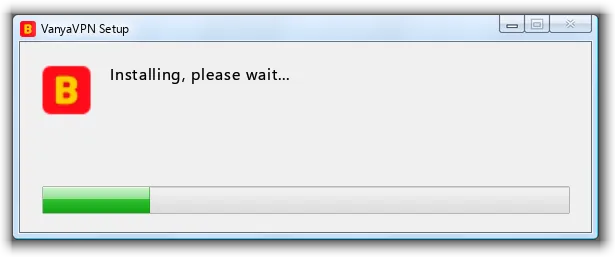
If your computer doesn’t have a recent enough version of .NET Framework, the installer fetches it from Microsoft (up to 120 MB) and starts its setup in a separate window. This can take 10–20 minutes, and the installer window keeps showing “Installing, please wait...” the whole time.
-
Sign in once the app opens
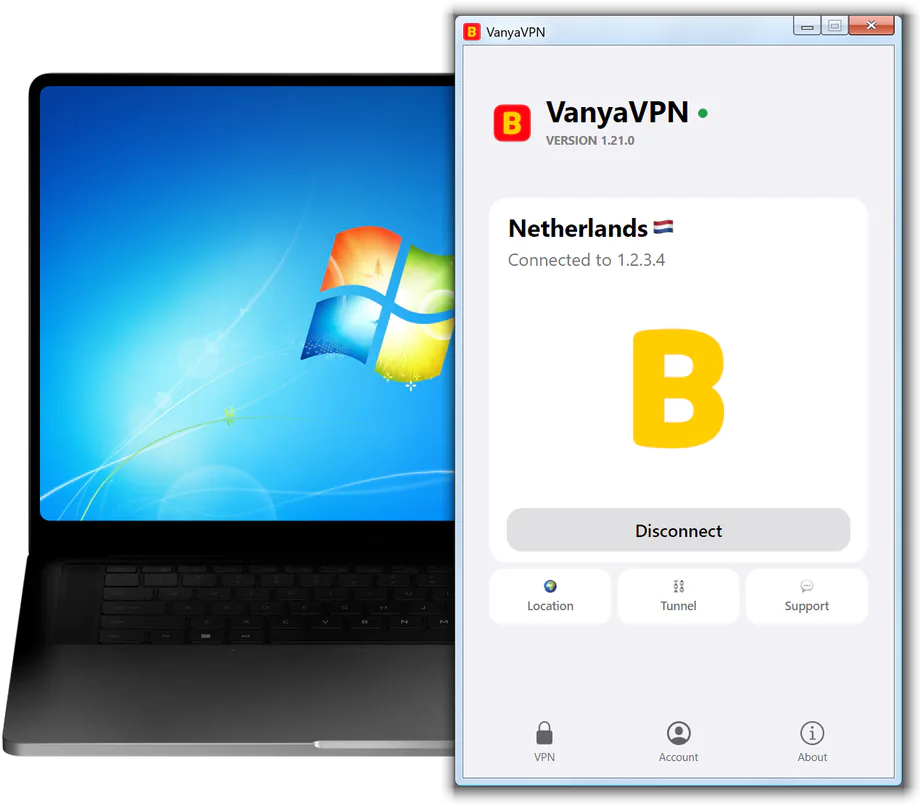
The app opens by itself when installation finishes. If a restart was needed, you’ll find it in the Start menu afterwards. Sign in, then pick any location to connect. Until you have a subscription, the app offers the plans.
If you later move to Windows 10 or 11
If you upgrade this computer to Windows 10 or 11, the app will need to be reinstalled. It shows a “Windows has been updated” notice and won’t connect until you reinstall it. Click “Reinstall the app” in that notice or download the installer again. It sets up the right version for the new system on its own.
Questions about PROXY for Windows 7
Does it work on Windows 8 or 8.1?
Yes. The installer works the same way there and adds whatever’s missing. The only difference is that on Windows 8 it installs .NET Framework 4.6.1 instead of 4.8, because Microsoft never released 4.8 for Windows 8. The Windows 8 page has the details.
What if .NET Framework doesn’t install?
The installer shows a link for downloading .NET Framework from Microsoft’s website. Install it from there, then run the VanyaPROXY installer again.
The installer says the network components could not be installed. What now?
Restart the computer first and try again. Make sure there’s at least 1 GB free on the system drive, and turn off your antivirus during installation. If the message comes back, contact support.
Will the old version I had on Windows 7 still work?
No. Since September 13, 2026, the service only works with app version 1.20 or later. Install the new version from this page instead.
Will the app get updates?
Yes, just like on Windows 10 and 11. The app lets you know when a new version is out, and the new version installs over the old one.
Will it install on Windows XP or Vista?
No, the minimum is Windows 7 SP1.
One subscription for your old PC and your phone
The subscription lives in your account, not on the computer, so after reinstalling the app you only need to sign in again.
-
2 years
-
Year
-
6 months
- Month No bonus months $5/mo

The “Vanechka” trial
3 days with every country for $0.50, once per account. After that it continues month to month, and you can turn renewal off in your account.
If it does not work for you, we refund the payment under our refund policy.