
PROXY for Windows
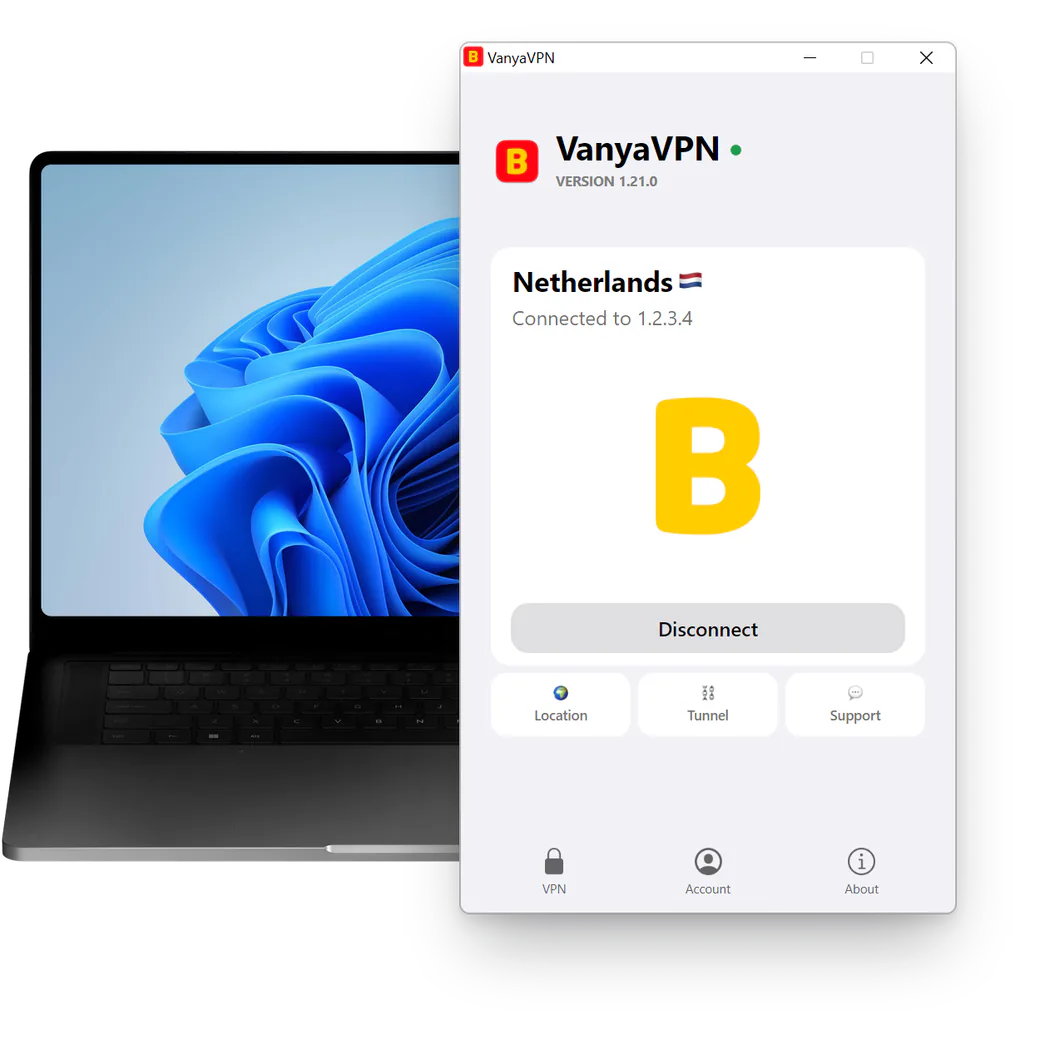
Choose a country, press Connect, close the window. VanyaPROXY keeps running in the tray and reconnects by itself whenever the connection drops. To get around blocks it uses VLESS + REALITY, XHTTP, Hysteria2 and Shadowsocks.
- Windows 7 SP1 and newer
- version 1.21.0
- 84.7 MB
- built on October 16, 2026
How to install
Installation takes a couple of minutes.
-
Download and run the installer
Windows asks if the app may make changes to your device. Answer Yes, since that’s how the network adapter gets installed. If a question about a driver follows, allow it as well.
-
Sign in to your account
Paid on the website already? Press “Sign in to account” and use your email, Telegram or Google. Without a subscription, Connect opens the plans.
-
Connect to a country
Press Location and pick the country you need. If nothing happens after that, press Connect yourself. If you’re in Russia and want Russian sites to skip the PROXY, turn on For Russia in Tunnel. If you’re abroad and need those sites to see a Russian address, choose Russia as the location.
Didn’t work? Detailed guide and common errors
Which Windows do you have
- PROXY for Windows 11Uses this very installer.
- PROXY for Windows 10Any version, 32-bit included.
- PROXY for Windows 8Covers 8.1 too, no service pack needed.
- PROXY for Windows 7Needs Service Pack 1 installed.
How to check your version
Press Win + R, type winver and hit Enter. A small window pops up showing which Windows you have and its version, something like “Version 22H2”. On Windows 7 it also shows whether Service Pack 1 is installed.
Not on Windows? There are apps for Mac, iPhone, Android, Android TV and Linux.
One subscription for all your devices
All 187 countries come with every plan. The laptop, your phone and the TV in the spare room share one subscription.
-
2 years
-
Year
-
6 months
- Month No bonus months $5/mo

The “Vanechka” trial
3 days with every country for $0.50, once per account. After that it continues month to month, and you can turn renewal off in your account.
If it does not work for you, we refund the payment under our refund policy.
Other things people ask
Windows says the publisher is unknown. Is that normal?
Not with our installer. It’s signed with an EV certificate, so the “Do you want to allow this app to make changes to your device?” window should show “Verified publisher” and the company name. If it says “Unknown”, the file came from somewhere else. Delete it and download a fresh copy from this page. A blue SmartScreen window may still appear for a brand-new release. Its “More info” link reveals a “Run anyway” button.
My Windows is 32-bit. Is that a problem?
No. The program itself is 32-bit, so it runs on 64-bit Windows as well. The only requirement is Windows 7 with Service Pack 1 or anything newer.
How many computers can use one subscription?
As many as you like, since there’s no cap. Install it on your home and work computers, your phone and the TV. The terms also allow sharing it with relatives.
How do I uninstall it?
Open Settings → Apps (on Windows 7 and 8, Control Panel → Programs and Features), find the app and click Uninstall. That doesn’t cancel your subscription, which you manage in your account.